> For the complete documentation index, see [llms.txt](https://uni.fotello.co/llms.txt). Markdown versions of documentation pages are available by appending `.md` to page URLs; this page is available as [Markdown](https://uni.fotello.co/business-details/domain.md).
# Domain
Connect a custom domain to fully white-label your booking and delivery experience.
{% hint style="warning" %}
Custom domains require the **Ultimate** plan.
{% endhint %}
### What you'll need
* A domain you own (example: `yourdomain.com`)
* Access to wherever your DNS is managed (see [Find your DNS provider](#find-your-dns-provider) below)
{% hint style="info" %}
Your custom domain is set up as a **subdomain** of the domain you own (example: `homes.yourdomain.com`). During setup you'll enter a subdomain — `homes` is filled in for you by default — along with your root domain.
{% endhint %}
***
### Complete domain setup
{% stepper %}
{% step %}
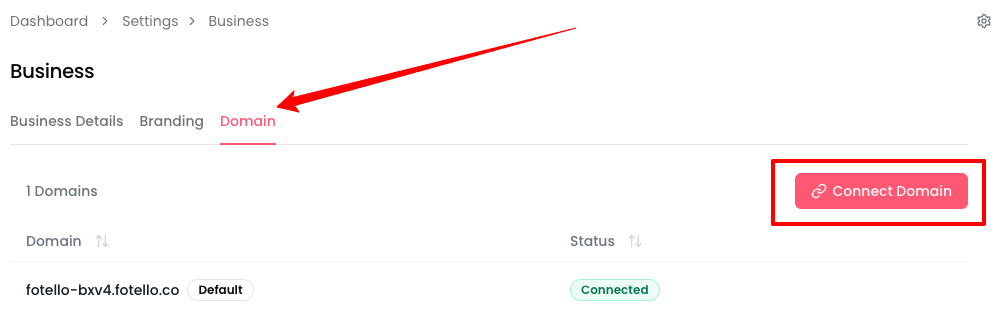
**Open Domain settings**
Go to **Settings → Business → Domain**.
{% endstep %}
{% step %}
**Click Connect Domain**
Click **Connect Domain**.
{% endstep %}
{% step %}
**Enter your domain**
The **Subdomain** field is filled in with `homes` by default. Keep it, or change it to something like `book` or `portal`.
In **Company Domain**, enter the root domain you own (example: `yourdomain.com`).
Fotello shows where your listings will be accessible (example: `homes.yourdomain.com`).
Then click **Connect Domain**.
{% endstep %}
{% step %}
**Copy the DNS records**
Fotello will display the required DNS records.
Copy each **CNAME** record by clicking on it and paste it into your DNS provider's settings.
Match the values exactly. Don't add extra spaces or change punctuation.
After you update DNS, wait for the changes to take effect.
{% endstep %}
{% endstepper %}
{% hint style="info" %}
DNS changes usually apply within **2 hours**, but can take up to **2 days**.
If verification fails, wait 15–20 minutes and try again.
{% endhint %}
***
### Find your DNS provider
This is the part that trips most people up. Your domain registrar (where you bought the domain) and your DNS provider (where you add records) are not always the same.
**If your nameservers point somewhere else, that's where you add DNS records — not your registrar.**
Here's how to figure out where your DNS is managed:
{% stepper %}
{% step %}
**Check your domain's nameservers**
Go to and search your domain. Look for the **Name Server** entries.
{% endstep %}
{% step %}
**Match the nameservers to a provider**
The nameservers tell you who controls your DNS:
| Nameservers contain | DNS is managed at |
| ------------------------------------------------- | ----------------- |
| `domaincontrol.com` | GoDaddy |
| `ns1.wixdns.net`, `ns2.wixdns.net` | Wix |
| `ns1.squarespace.com` | Squarespace |
| `*.cloudflare.com` (e.g. `ada.ns.cloudflare.com`) | Cloudflare |
| `registrar-servers.com` | Namecheap |
| `ns1.wordpress.com` | WordPress.com |
| `ui-dns.com` or `ui-dns.org` | IONOS (1&1) |
| `ns1.google.com`, `ns2.google.com` | Google Domains |
If you don't recognize the nameservers, search them — you'll find the provider.
{% endstep %}
{% step %}
**Add the CNAME records there**
Log in to the provider from Step 2. That's where you add Fotello's CNAME records — not necessarily the company you paid for the domain.
{% endstep %}
{% endstepper %}
***
### Common setups
#### You bought and host in the same place
Examples: GoDaddy site + GoDaddy domain, Wix site + Wix domain.
Log in to that provider. Go to DNS settings. Add the CNAME records from Fotello. Done.
#### You bought the domain at one place, but your website is hosted elsewhere
Example: Domain at Namecheap, website at Squarespace.
If you changed your nameservers to point to your hosting provider (Squarespace, in this case), then you manage DNS at the **hosting provider** — not Namecheap. Log in to Squarespace and add the CNAME records there.
If you never changed nameservers, DNS is still at the registrar (Namecheap). Add the records there.
#### You use Cloudflare
If your nameservers point to Cloudflare, all DNS changes happen in the Cloudflare dashboard.
Log in to Cloudflare → select your domain → **DNS** → **Add record**.
{% hint style="warning" %}
Set the **Proxy status** to **DNS only** (grey cloud) for the Fotello CNAME records. The orange cloud (proxied) will break verification.
{% endhint %}
#### You use Wix
Wix manages DNS for domains connected to Wix sites. Log in to Wix → **My Domains** → click your domain → **Manage DNS Records** → add the CNAME records.
If you bought the domain outside Wix but pointed nameservers to Wix, you still manage DNS inside Wix.
#### You use Squarespace
Log in to Squarespace → **Settings** → **Domains** → click your domain → **DNS Settings** → **Add record** → set type to **CNAME**.
#### You use WordPress.com (not self-hosted)
Go to **Upgrades** → **Domains** → click your domain → **DNS Records** → add the CNAME records.
{% hint style="info" %}
WordPress.com (hosted) and self-hosted WordPress are different. If you self-host, DNS is managed wherever your nameservers point — usually your hosting company (SiteGround, Bluehost, etc.).
{% endhint %}
***
### How to add a CNAME record
Every DNS provider uses a slightly different interface, but the fields are the same:
| Field | What to enter |
| -------------------------- | ------------------------------------------------ |
| **Type** | `CNAME` |
| **Host** or **Name** | The subdomain from Fotello (e.g. `book`) |
| **Points to** or **Value** | The target Fotello gives you (copy it exactly) |
| **TTL** | Leave the default, or set to **Auto** / **3600** |
{% hint style="warning" %}
Some providers auto-append your domain to the Host field. If Fotello says the host is `book`, and your domain is `yourdomain.com`, don't enter `book.yourdomain.com` — just enter `book`. Check your provider's preview to confirm the full record looks right.
{% endhint %}
***
### Troubleshooting
If your domain won't verify, check these first:
* **Wrong record type.** You need a **CNAME**, not an A record or TXT record.
* **Wrong DNS provider.** You're adding records at your registrar, but your nameservers point somewhere else. See [Find your DNS provider](#find-your-dns-provider).
* **Host mismatch.** The host/name must match exactly what Fotello shows (often a subdomain like `book`).
* **Conflicting records.** An existing A record or CNAME for the same host will block yours. Delete the conflicting record first.
* **Cloudflare proxy is on.** If you use Cloudflare, set the CNAME to **DNS only** (grey cloud icon). Proxied mode breaks verification.
* **Provider appended your domain.** Some DNS panels turn `book` into `book.yourdomain.com.yourdomain.com`. Check the record preview.
* **DNS hasn't propagated yet.** Wait 2 hours and try again. Can take up to 2 days in rare cases.
---
# Agent Instructions
This documentation is published with GitBook. GitBook is the documentation platform designed so that both humans and AI agents can read, navigate, and reason over technical content effectively. Learn more at gitbook.com.
## Querying This Documentation
If you need additional information that is not directly available in this page, you can query the documentation by asking a question.
Perform an HTTP GET request on the following URL with the `ask` and `goal` query parameters:
```
GET https://uni.fotello.co/business-details/domain.md?ask=&goal=
```
`ask` is the immediate question: it should be specific, self-contained, and written in natural language.
`goal` is what the user is ultimately trying to achieve, the reason they need the answer. Sharing it helps GitBook give you a better, more relevant answer. A goal is most helpful when it describes the outcome the user wants rather than restating the question. For example, with `ask=how do I create an API token`, a goal like `automate deployments from our CI pipeline` lets GitBook tailor the answer to that use case.
The response will contain a direct answer to the question and relevant excerpts and sources from the documentation.
Use this mechanism when the answer is not explicitly present in the current page, you need clarification or additional context, or you want to retrieve related documentation sections.