> For the complete documentation index, see [llms.txt](https://uni.fotello.co/llms.txt). Markdown versions of documentation pages are available by appending `.md` to page URLs; this page is available as [Markdown](https://uni.fotello.co/delivering-listings/email-templates.md).
# Email Templates
Every time you accept an order, confirm a booking, assign a team member, or deliver a listing, Fotello sends an email automatically. Email Templates let you control exactly what those emails say, so your customers and team members hear your voice, not a generic one.
To access email templates, go to **Settings → Notifications → Customer**, or use [this link](https://app.fotello.co/dashboard/settings/notifications).
### Turn appointment reminders on or off
Use the reminder toggle in **Settings → Notifications → Customer** to control whether appointment reminder emails are sent.
When reminders are on, Fotello sends the active 24-hour and 1-hour reminder templates to customers and team members.
When reminders are off, reminder emails are not sent.
### Why personalize your emails
Your emails are often the first and last touchpoint with a customer on every job. A generic confirmation or delivery email is a missed opportunity.
With custom email templates you can:
* **Sound like your brand.** Match the tone you use on your website, social media, and in person.
* **Include the details that matter.** Highlight your cancellation policy, add a personal thank-you, or link to your review page.
* **Build trust with new customers.** A polished, personalized email signals professionalism and attention to detail.
* **Keep your team informed.** Customize internal assignment emails so team members see exactly the info they need, formatted the way you want.
### Two categories of emails
Email templates are organized into the **Customer** and **Member** tabs:
| Tab | Who receives the email | Templates |
| ------------ | ------------------------------------------- | ------------------------------------------------------------------------------------------------------------------------------------------------------------------------------------------------------------------------------------------------------------------------------------------ |
| **Customer** | Your customers (realtors, homeowners, etc.) | Order Created, Order Accepted, Order Canceled, Appointment Scheduled, Appointment Rescheduled, Appointment Canceled, Appointment Reminder (24 hr), Appointment Reminder (1 hr), Listing Delivered, Revision Complete, Invoice Sent, Invoice Due Notification, Invoice Overdue Notification |
| **Member** | Your internal team members | Appointment Assigned, Appointment Reminder (24 hr), Appointment Reminder (1 hr), Order Canceled, Appointment Rescheduled, Appointment Unassigned, Appointment Canceled |
Switch between these tabs at the top of **Notifications**. Use the **Settings** tab to configure notification preferences, including [Text Notifications](/delivering-listings/text-notifications.md).
### Available templates
| Template | When it's sent | Category |
| -------------------------------- | ------------------------------------------------------------------------------------------------------------------------- | -------- |
| **Order Created** | Notifies customer when an order is requested by them | Customer |
| **Order Accepted** | Notifies customer when an order is accepted. If auto-accept is enabled, it's sent as soon as the order is created by them | Customer |
| **Order Canceled** | Notifies customer when an order is canceled | Customer |
| **Appointment Scheduled** | Notifies customer when a new appointment is scheduled for their order | Customer |
| **Appointment Reminder (24 hr)** | Notifies customer 24 hours before their appointment starts | Customer |
| **Appointment Reminder (1 hr)** | Notifies customer 1 hour before their appointment starts | Customer |
| **Appointment Rescheduled** | Notifies customer when a scheduled appointment is rescheduled | Customer |
| **Appointment Canceled** | Notifies customer when a scheduled appointment is canceled | Customer |
| **Listing Delivered** | Notifies customer when listing media is delivered | Customer |
| **Revision Complete** | Notifies customer when revisions they requested are completed | Customer |
| **Invoice Sent** | Notifies customer when an invoice is finalized | Customer |
| **Invoice Due Notification** | Reminds a customer before one or more of their invoices are due, on a schedule you choose | Customer |
| **Invoice Overdue Notification** | Reminds a customer after one or more of their invoices are past due and still unpaid | Customer |
| **Appointment Assigned** | Notifies a team member when they are assigned to an order | Member |
| **Order Canceled** | Notifies a team member when an order they are assigned to is canceled | Member |
| **Appointment Rescheduled** | Notifies a team member when their scheduled appointment is rescheduled | Member |
| **Appointment Unassigned** | Notifies a team member when they are unassigned from an appointment | Member |
| **Appointment Canceled** | Notifies a team member when their scheduled appointment is canceled | Member |
| **Appointment Reminder** | Reminds the assigned team member before the appointment starts (24-hour and 1-hour reminders) | Member |
***
## Turning reminder emails on or off
Appointment reminder emails go out automatically before an appointment — once 24 hours ahead and again 1 hour ahead — so customers and assigned team members don't forget.
You control whether each reminder is sent using the toggle next to it in the **Customer** or **Member** list.
1. Go to **Settings → Notifications**.
2. Open the **Customer** or **Member** tab.
3. Find the **Appointment Reminder** row you want to change (24 Hr or 1 Hr).
4. Use the toggle on that row to turn the reminder on or off.
### Invoice reminders
Fotello can chase unpaid invoices for you with two reminder emails. Each one lists the invoices involved, the total amount, and a link for the customer to review and pay all of their open invoices in one place. Both are in the **Customer** list, and you can personalize their subject and content just like any other template.
#### Set when a reminder is sent
Open either reminder and use the **Send timing** control at the top of the editor to choose when it goes out:
* For the **Invoice Due Notification**, pick how many days **before** the due date to send it. Choose **On the day** to send it on the due date itself.
* For the **Invoice Overdue Notification**, pick how many days **after** the due date to send it.
Select more than one day to send several reminders, then click **Save**.
#### Invoice Due Notification
The **Invoice Due Notification** reminds a customer before one or more of their invoices are due. It is **on by default** and has its own on/off toggle in the **Customer** list, so you can turn it off if you'd rather follow up on invoices yourself.
#### Invoice Overdue Notification
The **Invoice Overdue Notification** follows up after an invoice is past due and still unpaid. It is **off by default** — turn it on with its toggle in the **Customer** list whenever you want Fotello to keep nudging customers who haven't paid.
{% hint style="info" %}
Appointment reminders and the two invoice reminders are the emails with an on/off toggle. Other templates always send for the events they cover — you can still personalize their content below.
{% endhint %}
| Template | When it's sent | Category |
| -------------------------------- | ------------------------------------------------------------------------------------------------------------------------- | -------- |
| **Order Created** | Notifies customer when an order is requested by them | Customer |
| **Order Accepted** | Notifies customer when an order is accepted. If auto-accept is enabled, it's sent as soon as the order is created by them | Customer |
| **Order Canceled** | Notifies customer when an order is canceled | Customer |
| **Appointment Scheduled** | Notifies customer when a new appointment is scheduled for their order | Customer |
| **Appointment Reminder (24 hr)** | Notifies customer 24 hours before a scheduled appointment | Customer |
| **Appointment Reminder (1 hr)** | Notifies customer 1 hour before a scheduled appointment | Customer |
| **Appointment Rescheduled** | Notifies customer when a scheduled appointment is rescheduled | Customer |
| **Appointment Canceled** | Notifies customer when a scheduled appointment is canceled | Customer |
| **Listing Delivered** | Notifies customer when listing media is delivered | Customer |
| **Revision Complete** | Notifies customer when revisions they requested are completed | Customer |
| **Invoice Sent** | Notifies customer when an invoice is finalized | Customer |
| **Invoice Due Notification** | Reminds a customer before one or more of their invoices are due, on a schedule you choose | Customer |
| **Invoice Overdue Notification** | Reminds a customer after one or more of their invoices are past due and still unpaid | Customer |
| **Appointment Assigned** | Notifies a team member when they are assigned to an order | Member |
| **Appointment Reminder (24 hr)** | Notifies a team member 24 hours before a scheduled appointment | Member |
| **Appointment Reminder (1 hr)** | Notifies a team member 1 hour before a scheduled appointment | Member |
| **Order Canceled** | Notifies a team member when an order they are assigned to is canceled | Member |
| **Appointment Rescheduled** | Notifies a team member when their scheduled appointment is rescheduled | Member |
| **Appointment Unassigned** | Notifies a team member when they are unassigned from an appointment | Member |
| **Appointment Canceled** | Notifies a team member when their scheduled appointment is canceled | Member |
***
## Calendar invites
Emails about a scheduled appointment carry a calendar invite, so the shoot lands straight in your customer's calendar without anyone retyping the details.
The invite uses the property address as the event title and location. It also carries your company name, the booked services, and a link to the order, and it sets a reminder one hour before the appointment starts.
| Email | What the invite does |
| --------------------------- | ------------------------------------------------- |
| **Order Accepted** | Adds the appointment to your customer's calendar |
| **Appointment Scheduled** | Adds the appointment to your customer's calendar |
| **Appointment Rescheduled** | Moves the existing event to the new date and time |
| **Order Canceled** | Removes the event from your customer's calendar |
| **Appointment Canceled** | Removes the event from your customer's calendar |
Your customer accepts the invite the way they would any other, from Gmail, Outlook, Apple Mail, or whichever calendar they use.
{% hint style="info" %}
Invites go to your customers. Emails to your team members are unchanged, and team members keep getting appointments through [Calendar Integration](/availability-and-scheduling/calendar-integration.md).
{% endhint %}
***
## Editing a template
{% stepper %}
{% step %}
**Open the editor**
Click any email template row to open the editor.
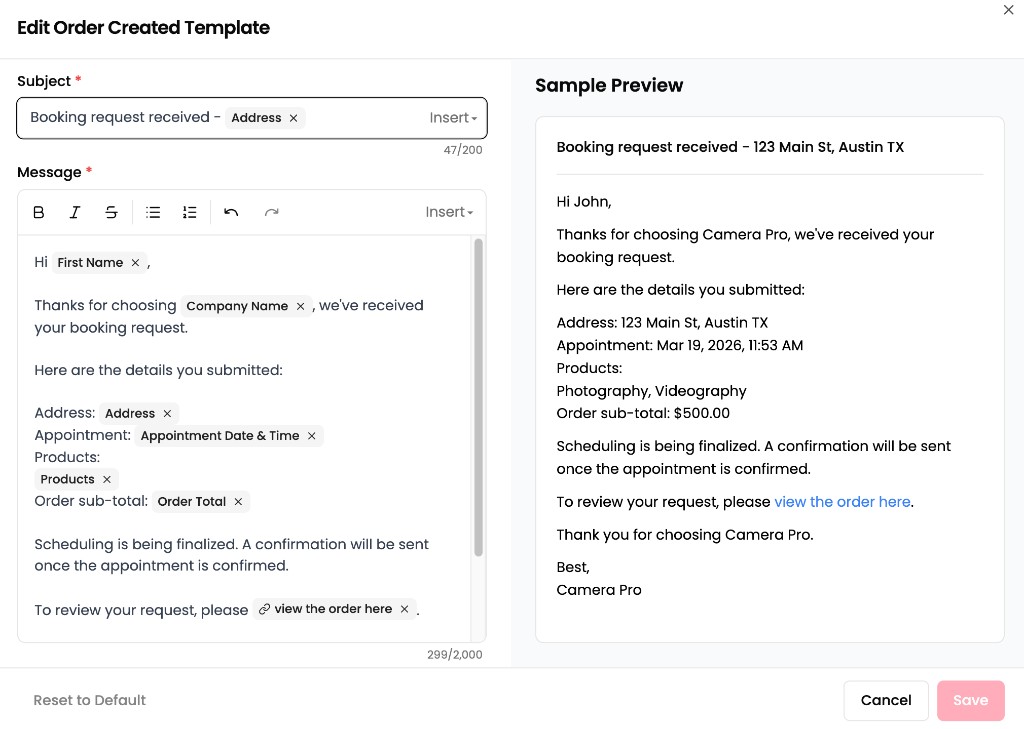
You'll see three areas:
* **Subject line** at the top
* **Email body**, the main content area with a formatting toolbar
* **Live preview**, a real-time preview of what the recipient will see
{% endstep %}
{% step %}
**Edit the subject line**
Click into the subject field and type your custom subject. You can also insert variables here (see below) so each email includes dynamic details like the property address.
**Character limit:** 200 characters.
{% endstep %}
{% step %}
**Edit the email body**
Click into the body area and write your message. Use the formatting toolbar above the body to style your text.
**Character limit:** 2,000 characters.
{% endstep %}
{% step %}
**Preview and save**
The live preview on the right updates as you type, showing exactly what the recipient will see, including your branding, resolved variables, and formatting.
When you're happy with the result, click **Save**.
{% endstep %}
{% endstepper %}
***
## Inserting variables
Variables are dynamic placeholders that get replaced with real data when the email is sent. For example, `First Name` becomes "Sarah" and `Property Address` becomes "123 Main St".
### How to insert a variable
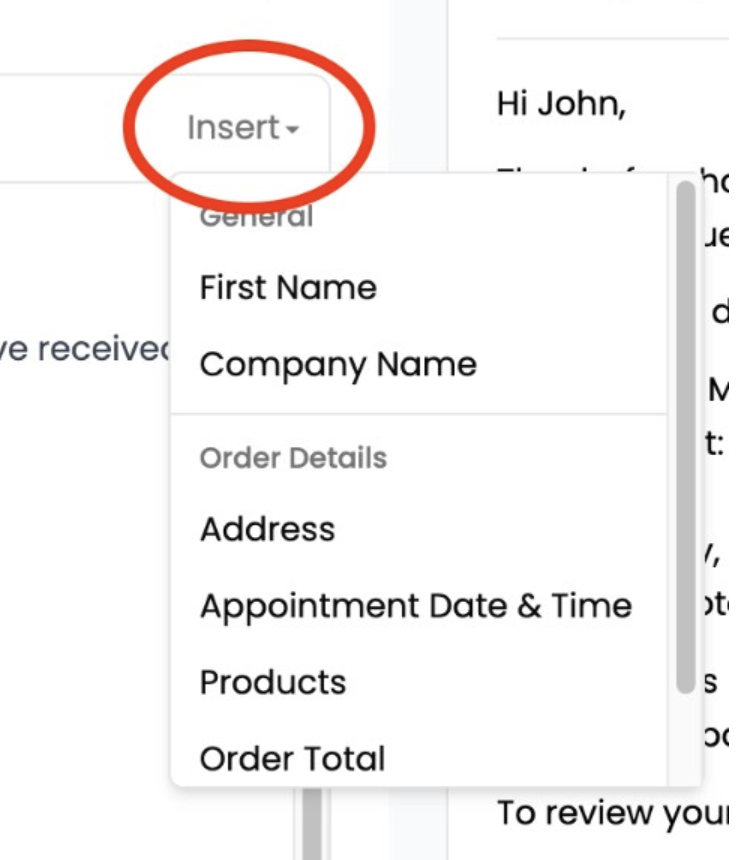
1. Place your cursor where you want the variable in the subject or body.
2. Click the **Insert** button.
3. Select a variable from the list.
The variable appears as a highlighted badge in the editor so you can easily see where dynamic content will go.
You can insert variables in both the subject line and the message body using the **Insert** button in each area.
### Available variables
Not every variable is available in every template. Only the ones relevant to that email type appear in the insert menu.
| Variable | What it becomes |
| ------------------------------ | ------------------------------------------------------------------- |
| **First Name** | The recipient's first name |
| **Company Name** | Your business name |
| **Property Address** | The property's street address |
| **Booking Date & Time** | The scheduled appointment date and time |
| **Photographer(s)** | The names of members assigned to the order |
| **Services Summary** | A formatted list of the booked services |
| **Total Amount** | The order total |
| **Order Link** | A link for the customer to view their order |
| **Listing Name** | The name of the delivered listing |
| **Listing Share Link** | A link to view and download the listing media |
| **Branded Property Website** | Link to the branded property website |
| **Unbranded Property Website** | Link to the unbranded property website |
| **Invoice Number** | The finalized invoice number |
| **Invoice Total** | The total amount due on the invoice |
| **Invoice Link** | A link for the customer to view and pay the invoice |
| **Due Date** | The date the invoices are due |
| **Due Timing** | How far before the due date the reminder is sent (e.g. "in 3 days") |
| **Days Overdue** | How many days past the due date the invoices are |
| **Invoice Count** | How many invoices are due |
| **Invoices Summary** | A formatted list of the due invoices |
| **Invoices Page Link** | A link for the customer to review and pay their open invoices |
### Telling customers who is coming
Use **Photographer(s)** from **Order Details** in the insert menu to add the names of members assigned to the order.
When several members are assigned, Fotello lists their names separated by commas. When nobody is assigned, it shows **To be assigned**.
This variable is included by default in the body of these customer templates:
* **Order Accepted**
* **Appointment Scheduled**
* **Appointment Rescheduled**
* **Appointment Reminder (24 hr)**
* **Appointment Reminder (1 hr)**
If you already customized one of these templates, insert **Photographer(s)** yourself.
{% hint style="info" %}
If the recipient's first name isn't available, the greeting automatically falls back to a simple "Hi," with no empty name or broken text.
{% endhint %}
***
## Formatting your email
The editor toolbar gives you control over how your email looks.
You can:
* **Bold** and *italic* text for emphasis
* Create **bullet lists** and **numbered lists**
* Add **links** by selecting text and using the link button in the toolbar
### How formatting is rendered
* If you write in **plain text** (no HTML tags), Fotello automatically converts line breaks into proper paragraphs and turns URLs into clickable links.
* If you use **HTML formatting** through the toolbar, Fotello preserves your structure and applies consistent styling (font size, line height, and colors) so emails look clean in every inbox.
You don't need to write raw HTML. The toolbar handles it for you. Just write naturally and use the toolbar buttons to style.
{% hint style="info" %}
Links you type or insert as variables are automatically styled in your email. You don't need to worry about link formatting.
{% endhint %}
***
## Resetting to default
If you want to start over or undo your changes, click **Reset to Default** in the editor. This restores the original Fotello template for that email type.
{% hint style="warning" %}
Resetting replaces your entire custom template (subject and body) with the default. This can't be undone.
{% endhint %}
***
## Tips for great email templates
* **Keep it short.** Customers scan emails, so get to the key info quickly.
* **Use variables.** A personalized greeting and specific order details go a long way.
* **End with a clear next step.** Include the Order Link or Listing Share Link so recipients know exactly what to do.
* **Preview before saving.** The live preview catches formatting issues before your customers do.
* **Stay on brand.** Use the same tone and language you'd use if you were writing the email yourself.
---
# Agent Instructions
This documentation is published with GitBook. GitBook is the documentation platform designed so that both humans and AI agents can read, navigate, and reason over technical content effectively. Learn more at gitbook.com.
## Querying This Documentation
If you need additional information that is not directly available in this page, you can query the documentation by asking a question.
Perform an HTTP GET request on the following URL with the `ask` and `goal` query parameters:
```
GET https://uni.fotello.co/delivering-listings/email-templates.md?ask=&goal=
```
`ask` is the immediate question: it should be specific, self-contained, and written in natural language.
`goal` is what the user is ultimately trying to achieve, the reason they need the answer. Sharing it helps GitBook give you a better, more relevant answer. A goal is most helpful when it describes the outcome the user wants rather than restating the question. For example, with `ask=how do I create an API token`, a goal like `automate deployments from our CI pipeline` lets GitBook tailor the answer to that use case.
The response will contain a direct answer to the question and relevant excerpts and sources from the documentation.
Use this mechanism when the answer is not explicitly present in the current page, you need clarification or additional context, or you want to retrieve related documentation sections.