> For the complete documentation index, see [llms.txt](https://uni.fotello.co/llms.txt). Markdown versions of documentation pages are available by appending `.md` to page URLs; this page is available as [Markdown](https://uni.fotello.co/photos/twilight.md).
# Twilight
Twilights let you turn a daytime photos into a realistic twilight look by choosing a sky style (or uploading your own), creating multiple variations, and then fine-tuning with the same Adjust tools and Human Revisions you already use.
Each Twilight is created as a copy. Your original photo remains available.
### Getting Started
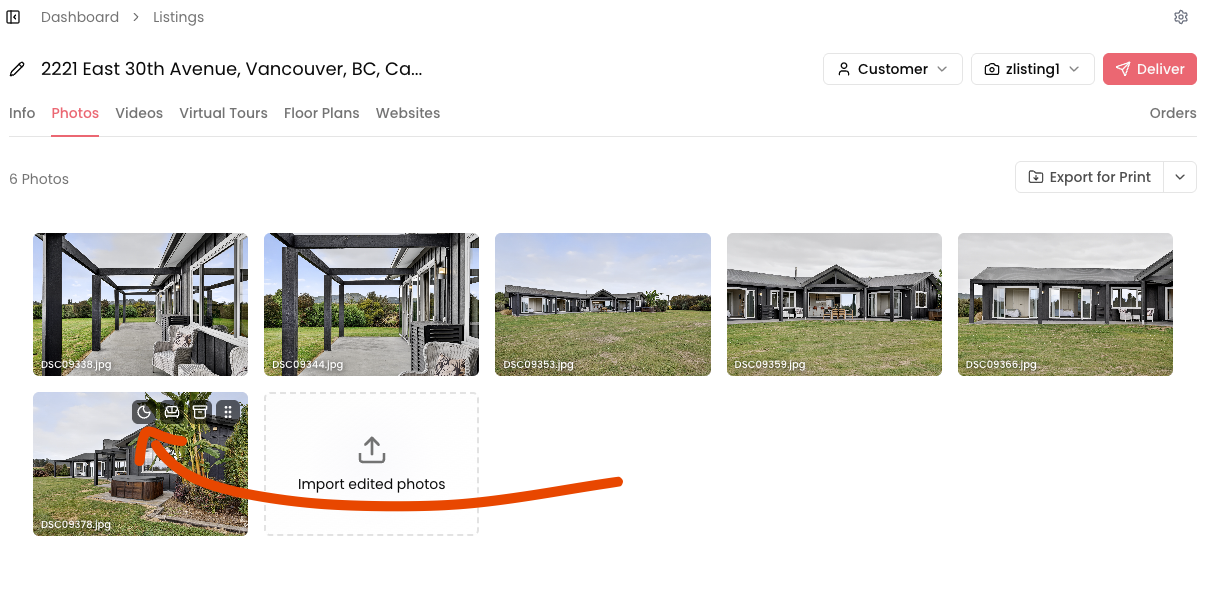
You can start creating a Twilight from three places:
#### 1) Listing details page
Hover on a photo, then click the Twilight icon.
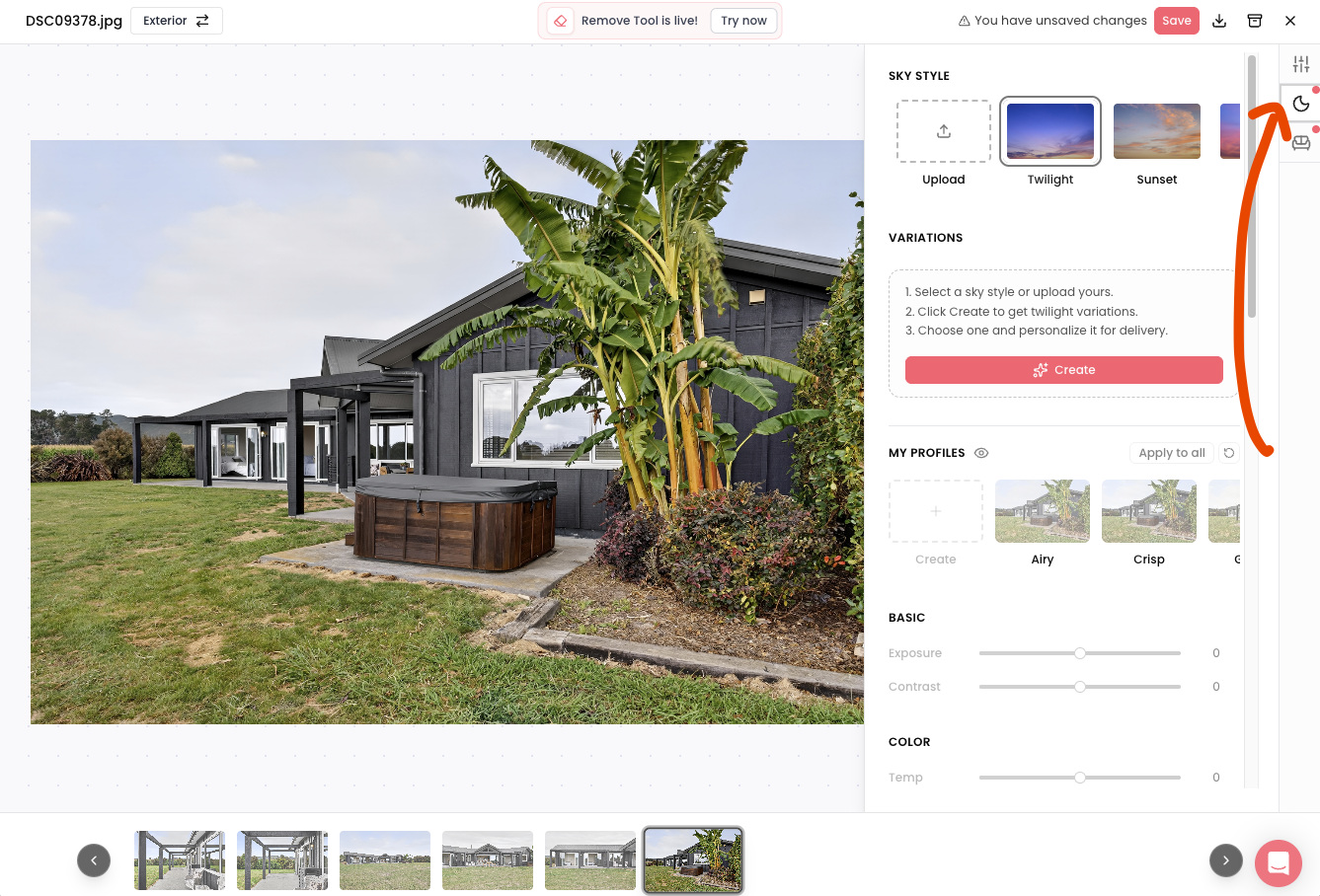
#### 2) Full-screen photo view
Open a photo in full screen, then use the Twilight section on the right side of the **Adjust Panel**.
#### 3) Revision bar shortcut
Open a photo in full screen, then click **Twilight** in the bar at the bottom of the photo.
Fotello opens the Twilight section in the **Adjust Panel** and highlights it, so you can pick a sky style right away.
The shortcut sits next to the revision box while the box is empty. Start typing a revision and it makes way for your text.
{% hint style="info" %}
Want to create Twilights for several photos at once? Use the Twilight tab in [Batch Edit](/photos/personalizing-photos/batch-edit.md).
{% endhint %}
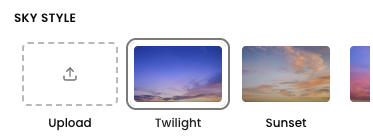
### Choose a sky style
Inside Twilight, you can:
* Pick an included sky style from the library, or
* Upload your own sky to match your personal style or your client’s preferences.
{% hint style="info" %}
Twilight Sky Style is separate from the exterior **Sky Style** preference in [Preferences](/photos/editing/preferences.md).
{% endhint %}
### Upload your own sky
Uploading your own sky is ideal when you want consistency across listings (or when a client asks for a very specific look).
**How it works:**
1. In the "**Sky Style"** area, click "**Upload"**.
2. Select a sky image from your computer.
3. Your uploaded skies stay inside Fotello so you (or anyone on your team) can re-use them.
#### Best practices for custom sky images
Use skies that blend naturally with real estate exteriors (and avoid anything that looks “stocky” or over-processed).
**Recommended:**
* High-resolution images (sharp gradients, no banding, no heavy compression artifacts)
* Only sky in the image so there is no confusion in masking
* Realistic twilight color (blue hour / golden hour tones work best)
**Avoid:**
* Buildings, trees, houses etc. in the sky image
* Over-saturated skies that don’t match the ambient light
* Strong sun flares where the original photo has no matching light direction
* Low-res skies that blur or pixelate on export
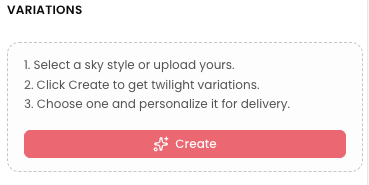
### Create your Twilight
Once you’ve selected a sky:
1. Click **Create with Foton AI 10.0**.
2. Fotello starts creating your Twilight variations.
### Choose your Twilight engine
Twilight gives you two engines to create with:
* **Foton AI 10.0** is our newest engine, marked **New**, and the one Twilight uses unless you pick the other. It is the best choice for most photos.
* **Foton AI 6.0** is our previous engine. Reach for it when you prefer the look it gives on a particular shot.
To switch, click the arrow on the right side of the **Create** button and choose the engine you want. The button updates to show your choice, so you always know which engine you are about to use.
Each variation is labelled with the engine that made it, so you can compare the two side by side before you choose.
{% hint style="info" %}
You can pick your engine in [Batch Edit](/photos/personalizing-photos/batch-edit.md) too, from the same **Create** button on the Twilight tab.
{% endhint %}
### Variations
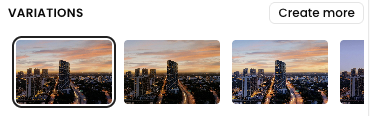
Each Twilight **Create** creates **3 variations** for you to choose from. Use variations to quickly pick the output you like.
Want more options? Click **Create more** and pick an engine to create **another set of 3 variations**.
{% hint style="info" %}
Each time you use Create more, it counts as 1 additional Twilight creation.
{% endhint %}
### Fine-tune your Twilight
After creating a Twilight, you can keep refining it using:
* Any available adjustment controls ([Personalizing Photos](/photos/personalizing-photos.md))
* [Human Revisions](/photos/personalizing-photos/human-revisions.md) (to request manual polish / refinements)
### Plan coverage and pricing
Twilight availability and included usage depends on your plan. If it isn’t included (or you need more), it’s available via pay as you go.
Find out more about pricing [here](https://www.fotello.co/pricing).
---
# Agent Instructions
This documentation is published with GitBook. GitBook is the documentation platform designed so that both humans and AI agents can read, navigate, and reason over technical content effectively. Learn more at gitbook.com.
## Querying This Documentation
If you need additional information that is not directly available in this page, you can query the documentation by asking a question.
Perform an HTTP GET request on the following URL with the `ask` and `goal` query parameters:
```
GET https://uni.fotello.co/photos/twilight.md?ask=&goal=
```
`ask` is the immediate question: it should be specific, self-contained, and written in natural language.
`goal` is what the user is ultimately trying to achieve, the reason they need the answer. Sharing it helps GitBook give you a better, more relevant answer. A goal is most helpful when it describes the outcome the user wants rather than restating the question. For example, with `ask=how do I create an API token`, a goal like `automate deployments from our CI pipeline` lets GitBook tailor the answer to that use case.
The response will contain a direct answer to the question and relevant excerpts and sources from the documentation.
Use this mechanism when the answer is not explicitly present in the current page, you need clarification or additional context, or you want to retrieve related documentation sections.