> For the complete documentation index, see [llms.txt](https://uni.fotello.co/llms.txt). Markdown versions of documentation pages are available by appending `.md` to page URLs; this page is available as [Markdown](https://uni.fotello.co/teams/teams.md).

# Teams

We want every photographer to scale their business. As you grow, Fotello makes it simple to invite teammates, keep work organized, and control exactly who can do what. Everyone gets the access they need. Your business stays secure.

### Why use Teams <a href="#h_0ce5d048f3" id="h_0ce5d048f3"></a>

* Right access, right person: Each teammate has their own login and only sees what matters to them.
* Shared creative standards: Style Profiles, TVs, Fireplaces, Pins, and other shared assets are available to the whole team so your look stays consistent, no matter who uploads.

### Roles and permissions <a href="#h_eb028be44f" id="h_eb028be44f"></a>

Every account has one Owner. You can then add Admins and Photographers. To learn about different roles and permissions, see [Roles & Permissions](/teams/roles-and-permissions.md)

### Manage teammates <a href="#h_92de413ef7" id="h_92de413ef7"></a>

Only the **Owner** can invite teammates and manage access.

Open **Settings → Manage team**.

{% hint style="info" %}
Page link: <https://app.fotello.co/dashboard/settings/teams/members>
{% endhint %}

You’ll use two tabs:

* **Members**: people who already have access.
* **Invitations**: pending or expired invites.

<details>

<summary>Add a teammate</summary>

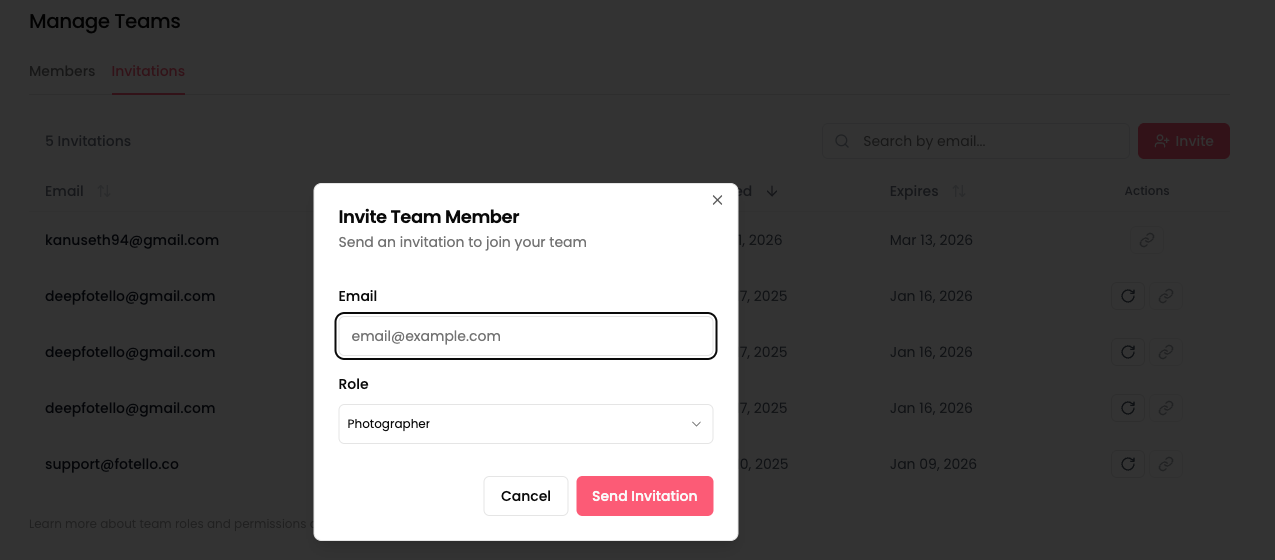
1. Go to **Settings → Manage team**.
2. Click **Invite**.
3. Enter your teammate’s email.
4. Pick a role. See more [#h\_5d7d5e980f](#h_5d7d5e980f "mention")
5. Send the invite.

<figure><img src="/files/QlI9sC3LmnOApp1LJJoe" alt="" width="563"><figcaption></figcaption></figure>

Track delivery and acceptance in the **Invitations** tab. Invitations expire after 30 days.

</details>

<details>

<summary>Resend invitation</summary>

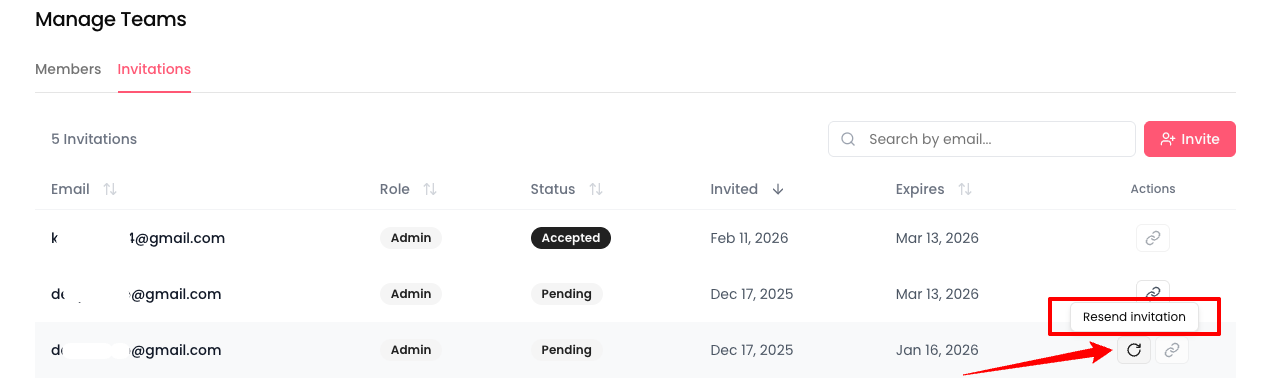
Use this if the invite expired.

1. Go to the **Invitations** tab.
2. Find the invite.
3. Under **Actions**, click **Resend invitation**.

<figure><img src="/files/c2uQ8tUbwoUbvKXZc998" alt=""><figcaption></figcaption></figure>

</details>

<details>

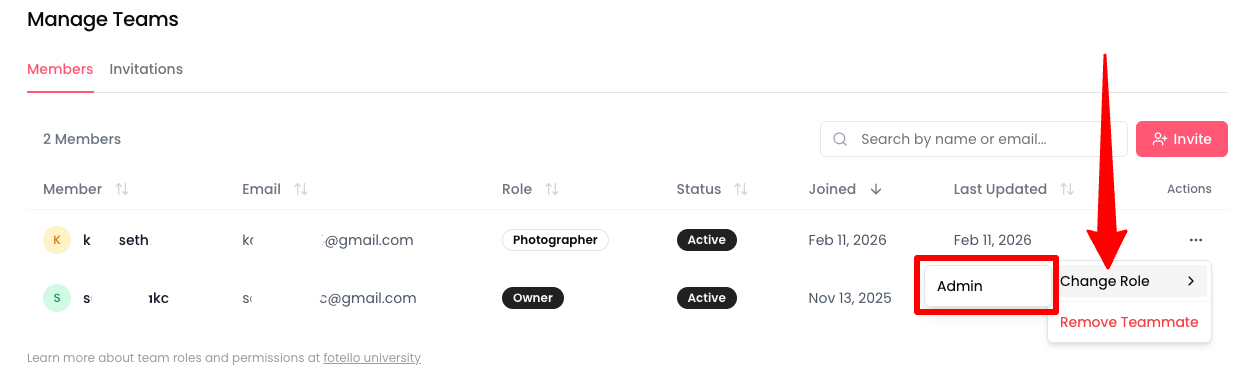
<summary>Change a teammate’s role</summary>

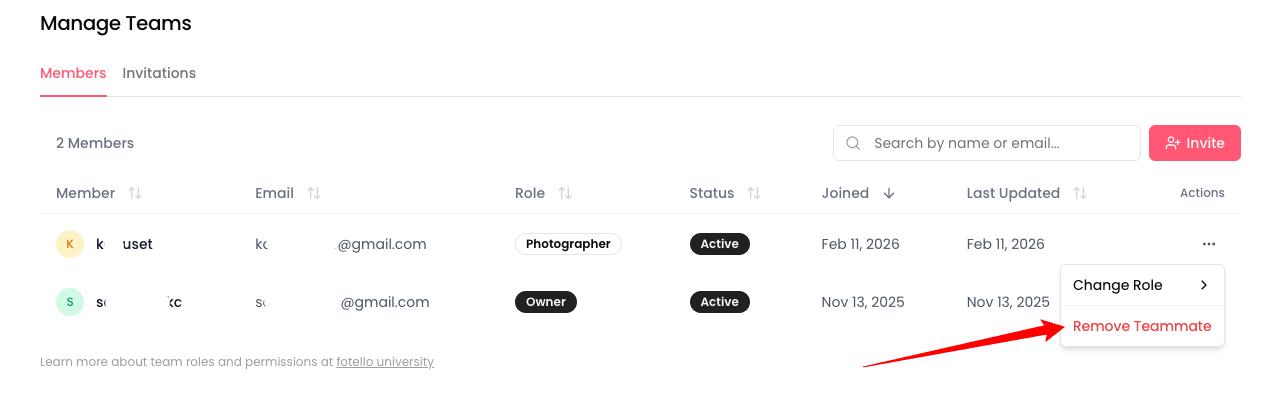
1. Open the **Members** tab.
2. Find the teammate in the list.
3. Click the **Actions** menu (•••).
4. Click **Change Role**.
5. Choose the new role.

<figure><img src="/files/re6n5eFRMMzxE2HGqhuB" alt="Actions menu on the Members tab showing Change Role and Remove Teammate"><figcaption></figcaption></figure>

</details>

<details>

<summary>Remove teammate access</summary>

1. Go to the **Members** tab.
2. Find the teammate.
3. Click the **Actions** menu (•••).
4. Click **Remove Teammate**.

<figure><img src="/files/gSrwLCDYeReMrhjZWRGs" alt="Actions menu on the Members tab showing Change Role and Remove Teammate"><figcaption></figcaption></figure>

The teammate’s row will grey out and their status will change to **Removed**.

</details>

<details>

<summary>Restore teammate access</summary>

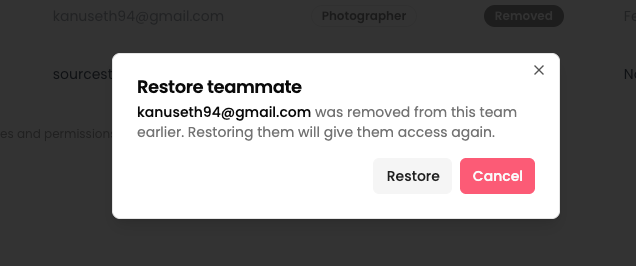
Use this when you removed someone earlier and want to re-enable access.

1. Go to the **Members** tab.
2. Find the teammate with **Removed** status (greyed out row).
3. Click the **Actions** menu (•••).
4. Click **Restore Teammate**.

<figure><img src="/files/vkw4NqO1UJ2FwnHUM3sn" alt="restore teammate access"><figcaption></figcaption></figure>

</details>

### Final word <a href="#h_bc934e7f7f" id="h_bc934e7f7f"></a>

Teams in Fotello are built to scale with you. Clear roles protect your business, shared assets protect your look, and everyone can focus on doing their best work. If you are unsure which role to use, start with Photographer and move up only when needed. We are always here to help you set it up right.
---

# Agent Instructions
This documentation is published with GitBook. GitBook is the documentation platform designed so that both humans and AI agents can read, navigate, and reason over technical content effectively. Learn more at gitbook.com.

## Querying This Documentation
If you need additional information that is not directly available in this page, you can query the documentation dynamically by asking a question.

Perform an HTTP GET request on the current page URL with the `ask` query parameter, and the optional `goal` query parameter:

```
GET https://uni.fotello.co/teams/teams.md?ask=<question>&goal=<endgoal>
```

`ask` is the immediate question: it should be specific, self-contained, and written in natural language.
`goal` is optional and describes the broader end goal you are ultimately trying to accomplish on behalf of the user. GitBook uses it to tailor the answer towards what is most useful for that goal.

The response will contain a direct answer to the question and relevant excerpts and sources from the documentation.

Use this mechanism when the answer is not explicitly present in the current page, you need clarification or additional context, or you want to retrieve related documentation sections.